APPCNA 指紋驗證登錄
今天在APP中集成了指紋與手勢登錄功能,本文章分兩部分進行記錄。一是手勢功能的邏輯。二是程式碼實現。該APP是採用APPCAN開發,直接用其已寫好的插件,調用相當介面就要可以了。
1、在APP的個人中心加入手勢設置的方法,用戶只要登錄後進入個人中心就可以設置手勢登錄功能。
頁面程式碼如下:
 <a href="#" class="my_info" onclick="createGesture()">
                    <div class="fl tuoch_setting">手勢設置(僅本機有效)</div>
                    <div class="fr fa fa-angle-right ulev2 sc-text"></div>
                </a>
onclick方法如下,單擊後會打開手勢設置介面。
isNeedVerifyBeforeCreate參數是在你重設手勢時會不會較驗之前的手勢。我這選的是不校驗。只要你登錄了,你的手勢就可以重新設置。不論你之前用的什麼手勢。
function createGesture(){
        var data={
            isNeedVerifyBeforeCreate:false
        }
        uexGestureUnlock.create(JSON.stringify(data));
    }
2、手勢設置成功後我們如果退出,在登錄介面會多一個手勢登錄功能
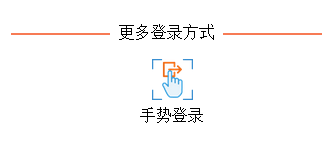
點擊後會對之前設置好了的手勢進行驗證,頁面程式碼如下:
<div id='gestureunlockdiv' class="resxinlang ub-img umhw2" onclick="uexGestureUnlockverify();">手勢登錄</div>
onclick方法也是非常簡單,只要調用插件uexGestureUnlock的介面就ok。
 function uexGestureUnlockverify()
    {
        uexGestureUnlock.verify();
    }
3、上面插件的方法在執行行我們都要對插件uexGestureUnlock進行初始化,包括手勢驗證的回調方法cbVerify。還有設置手勢和驗證手勢時的監聽方法onEventOccur
function initGestureUnlock()
{
    uexGestureUnlock.onEventOccur=function(info){
                if(JSON.parse(info).eventCode==11){
                    appcan.window.openToast("手勢密碼設置完成!",2000,5,0);

                }
                if(JSON.parse(info).eventCode==5){
                    appcan.window.openToast("手勢密碼驗證成功!",2000,5,0);

                    //登錄操作
                        //GestureLogin();

                }
                if(JSON.parse(info).eventCode==4 || JSON.parse(info).eventCode==10)
                {
                    uexGestureUnlock.cancel();
                }

                //1 插件初始化
                //2 開始手勢密碼驗證
                //3 手勢密碼驗證失敗
                //4 驗證過程被用戶取消
                //5 手勢密碼驗證成功
                //6 開始手勢密碼設置
                //7 用戶輸入的密碼不符合長度要求
                //8 開始第二次輸入手勢密碼
                //9 兩次輸入的密碼不一致
                //10 手勢密碼設置被用戶取消
                //11 手勢密碼設置完成
            }
            uexGestureUnlock.cbIsGestureCodeSet=function(info){
                if(JSON.parse(info).result){

                }
            }
            uexGestureUnlock.cbVerify=function(info){
                if(JSON.parse(info).errorString=="在未設置密碼的情況下進行驗證密碼操作"){
                    appcan.alert("請先進行手勢設置!");
                    return false;
                }
                if(JSON.parse(info).isFinished=="false")
                {
                    appcan.alert("手勢密碼登陸失敗!請使用帳號密碼重新登錄!");
                    $("#gestureunlockdiv").hide();
                }
                if(JSON.parse(info).isFinished)
                {
                    GestureLogin();
                }
            }
            uexGestureUnlock.cbCreate=function(info){
            }

            var data={
            backgroundImage:"../images/uexGestureUnlockbg.jpg",
            iconImage:"../images/uexGestureUnlockTouxiang.png",
            normalThemeColor:"#008cff",  //普通主題色
            selectedThemeColor:"#124dc3",//選中主題色
            errorThemeColor:"#ff0000",   //錯誤主題色
            cancelVerificationButtonTitle:"取消",
            minimumCodeLength:5,
            verificationErrorPrompt:"驗證錯誤!您還可以嘗試%d次",
            verificationBeginPrompt:GestureLoginUserName
        }
        uexGestureUnlock.config(JSON.stringify(data));
        uexGestureUnlock.isGestureCodeSet();
}
4、在驗證手勢成功後會調用自定義的方法 GestureLogin(),該方法中有一個變數GestureLoginUserName,就是登錄的用戶名,這個用戶名來自於我們登錄成功時寫入文件的用戶名。
function GestureLogin(){
            if(GestureLoginUserName=='')
            {
                appcan.window.openToast("請先使用用戶名和密碼登錄!",2000,5,0);
                return;
            }
       showMsg();
            appcan.request.ajax({
            url:GetServiceHostIp()+"LoginByUserId?userName="+escape(GestureLoginUserName),
            type:'get',
            dataType:'json',
            success:function(data, status, requestCode, response, xhr)
            {
              hidenMsg();
                if(data.Status=="1")
                {
                    appcan.window.publish('login',data.Data);
                    appcan.locStorage.setVal('islog','1');
                    appcan.locStorage.setVal('userId',data.Data.userId);
                    appcan.locStorage.setVal('userName',data.Data.userName);
                    appcan.locStorage.setVal('IdCard',data.Data.idCard);
                    appcan.locStorage.setVal('xmbm',data.Data.xmbm);
                    appcan.window.publish('close_login','0');
                    uexWindow.evaluateScript("desktop", "0", "location.reload('../approval/desktop.html')");
                    uexWindow.open("desktop", 0, "../approval/desktop.html", 1, 0, 0, 0);
                    uexWindow.close();

                }
                else if(data.Status=="2"){
                    appcan.window.openToast(data.Message,2000,5,0);
                }
                else{
                    appcan.window.openToast("用戶名或密碼錯誤,錯誤程式碼:"+data.Status,2000,5,0);
                }
            }
            ,
            error:function(xhr,status,errMessage){
                hidenMsg();
                appcan.window.openToast('登陸失敗,原因:errMessage:'+errMessage+',xhr:'+xhr+',status:'+status,2000,5,0);
            }

        });
        }
5、接下來的問題就來了,我們如何將資訊寫入到文件中及讀取呢,請看我下面提供的一組有用的插件介面
//創建文件
var file = uexFileMgr.create({
    path:"wgt://data/1.txt"
});
if(!file){
    alert("創建失敗!");
}


//打開文件
var file = uexFileMgr.open({
    path: "wgt://data/1.txt",
    mode: 3
});
if(!file){
    alert("打開失敗!");
}

//判斷文件是否存在
var ret = uexFileMgr.isFileExistByPath("wgt://data/test.txt");
alert(ret);


//寫文件
var file = uexFileMgr.open({
    path: "wgt://data/1.txt",
    mode: 3
});
uexFileMgr.writeFile(file, 0, "test",function(err){
    alert(err);
});

//讀文件
var file = uexFileMgr.open({
    path: "wgt://data/1.txt",
    mode: 3
});
uexFileMgr.readFile(file, -1,0,function(error,data){
    if(!error){
        alert(data);
    }else{
        alert("讀取失敗!");
    }

});

//關閉文件
var file = uexFileMgr.open({
    path: "wgt://data/1.txt",
    mode: 3
});
var ret = uexFileMgr.closeFile(file);
alert(ret);
溫馨提示:如需要微信投票、點贊、註冊的朋友可以聯繫我,百萬水軍為您服務